Check Storage Usage
Steps
Access
http://<ip>:8080/to log into the DBCC console.Click Storage Usage in the left navigation menu to view the storage overview information.
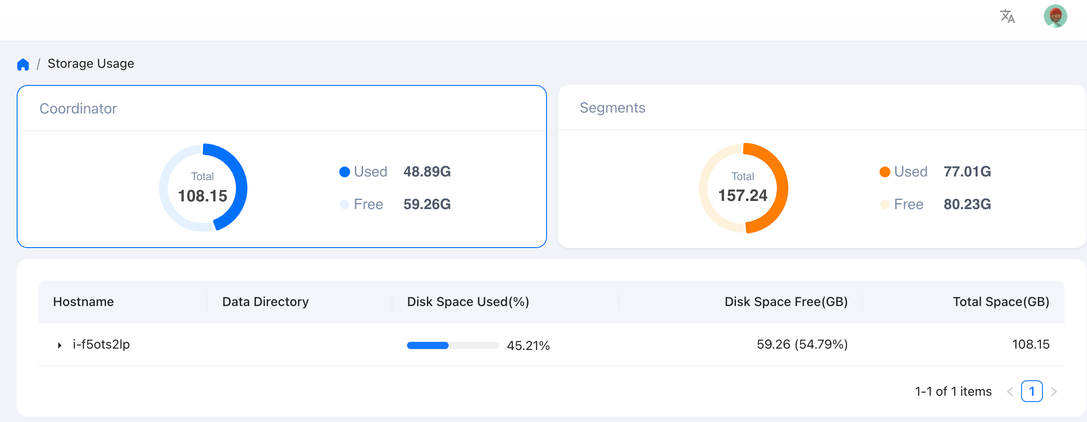
Click the Coordinator and Segments cards at the top of the page to view the disk usage of the machines hosting the coordinator and segment nodes respectively.
Display item
Description
Host Name
Host names of the coordinator or segments. There might be multiple hosts.
Data Directory
The mounting point and path information of each machine.
Used Disk Space (%)
The disk usage of each machine and its percentage.
Disk Space Free (GB)
The available amount of disks on each machine and its percentage.
Total Space (GB)
The total capacity of disks on each machine.
Click the small triangle to the left of the Hostname to expand and view the disk usage under different mount points.
Hide mount points from the view
Some mount points are not worth showing here. A large backup volume mounted on every node, for example, adds no useful information and can dominate the totals. You can exclude such mount points so that DBCC leaves them out of this page.
On the DBCC server, edit
/etc/dbcc/dbcc-server/application.ymland list the mount points to exclude underdbcc.storage.excludeMountPoints. Each key is a host name; the reserved keyallapplies to every host:dbcc: storage: excludeMountPoints: all: - /mnt/backup node1: - /mnt/private
A host’s effective exclusion set is the
alllist plus the list under its own host name. In the example above,/mnt/backupis hidden on every host and/mnt/privateis hidden onnode1only.Restart the server:
sudo ./deploy.sh restart dbcc-server
Both the per-mount-point detail and the totals on the Coordinator and Segments cards drop the excluded mount points.
Warning
The wildcard key is the string all, not *. An entry written under * has no effect: the mount point keeps appearing, and DBCC reports no error.
Keep the following in mind when you write the list:
DBCC matches mount points on exact equality, so give the full mount path. Neither a parent path such as
/mntnor a trailing slash such as/mnt/backup/matches/mnt/backup.Keys are host names. When the underlying metric identifies a host by IP, DBCC resolves the IP to the corresponding host name before it applies the rule, so a host-name key still matches even when the page reports that host by IP.
Exclusion affects this page only. The underlying Prometheus data and any disk usage alerts are unchanged.
Configure this on the server alone. No agent configuration is needed.